A student favorite is the 'Experimenting with Sound Waves'
Lesson.....but adding their voice to a cartoon character is even more fun!
Lesson 006 - Extension of the Sound Wave Lesson
** Note: As of 2006, I used the full Adobe Flash Pro program instead of VocaliseWav to create cartoons and many quizzes. I also used cartoons that I purchased from Cartoon Solutions to create the animations and add my students' voices. An example is posted at the top of the VocaliseWav is now only available through shareware and the website for the company is no longer posted. ** As of 2020, the Flash plugin will become obsolete.
Objectives:
* To review the brief study on sound waves and applications.
* To take the sound wave lesson and add the sound waves of students' voices to cartoon characters in Flash.
Materials:
* Computer(s) with a recent edition of the full Macromedia Flash program installed (such as Flash MX2004 or higher).
* VocaliseWav program, a plug-in extension to Flash.
* Pre-made graphics to use with the VocaliseWav program. A few graphic heads are included with the purchase of VocaliseWav.
* Microphones to record voices into the computer.
Procedures: (Review) Students
should review what a sound wave is and how it is used in computer
applications. Students should have completed the Sound Wave lesson before completing this lesson. Students will use a microphone
to record their voices into the Sound Recorder program on a
Windows computer.
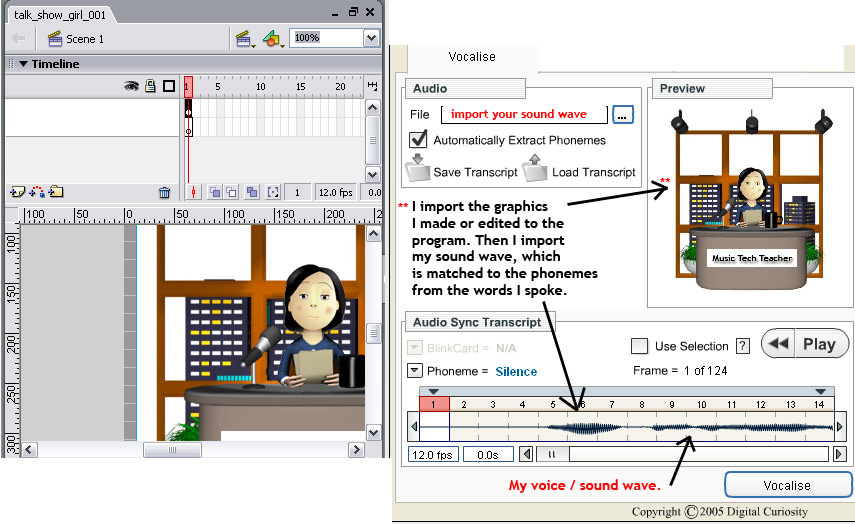
(New) Students will read from a paper describing various instructions related to activities on our website. Students will record this information into the computer using a microphone. Using the VocaliseWav plug-in, the students will import their voice into the Flash program and apply it to one of the cartoon characters. Immediately after importing their voice, students can play their cartoon clip on the computer (see student video clip below). The sounds / phonemes from their voices will match the words spoken by the computer. Students should speak very clearly into the microphone so the mouth of the cartoon character will match their words.
If the phoneme does not match the voice, it can be changed on individual frames. There are approximately 12 - 30 frames per second created. The editing has to be completed before importing the final character into your Flash animation. A screen shot of the program is shown below.
Example of a finished cartoon that 'speaks'. (1.2 MB MP4) This is a smaller 'head' than I use with the students. The words synchronize fairly well to the phonemes (shapes) of our voices. Individual frames can be changed to the correct phoneme if one is out of place. Each character has approximately 14-16 viseme cards (pictures) that make up the formation of words.
A Video of a student recording his voice into the program is shown below.
(13 MB MP4).
Ask students to notice...
- What kinds of 'shapes' are made with the digital form of their voice on
the computer?
- Does your voice sound different than you think it does when you are speaking?
- Does the sound wave that you made match the mouth movements of the cartoon head? Why or why not?
- Can you find the starting point and ending point of your voice on the
sound wave graphic?
- Can you change the mouth movement on the cartoon head if the phoneme does not match the voice? (Yes, each frame can be changed to 'repair' any words that did not form correctly.
Evaluation:
*Students
will know how to use a microphone and the "Sound Recorder" in
Windows to create a sound wave of their voice. Students will
save their sounds to the computer and will demonstrate an understanding
of what happens to the sound wave when they use 'effects' to
change the waveform.
*Students will record their voice into the computer and import the sound into the Flash / VocaliseWav program. They will be able to add their voice to the cartoon character head and save the file. (The students are not expected to create the graphic heads...just concentrate on the sound waves and phonemes.)